News & Announcemnets

For support on issues not related to publishing your site, please visit Namo's support website.
How to Publish with SJ Namo's WebEditor 6 ™
1. Open WebEditor 6 ™
2. Open your Site Manager by going to Window > Site Manager
3. The last site you worked on will automatically be pulled up in the Site Manager. If you need to open a site go to File > Open Site. You will need to browse to the folder that contains your web site.
Remote Site Settings
4. In order to publish you will need to tell WebEditor 6 where you will be publishing to. To do this open the Remote Sites window by going to File > Remote Sites…
5. You will now need to add your publish information by clicking  . This will pull up the Remote Site Settings.

6. For Site Name input a title for the Remote site you will be connecting to (ie. My InMotion Hosting Account). This is not the name of your site, it is just for your future reference.
7. For Type keep set to FTP.
8. For Host Name input your domain name, if it is fully propagated (24-72 hours has passed since you modified the DNS settings or purchased the domain from InMotion Hosting), or if it has not fully propagated you can use the server address that is part of your temporary url (ie. gs5.inmotionhosting.com).
9. For Directory input /public_html/. This is the folder on InMotion's server the all files should be placed in order for them to be live to the internet.
10. Type your Username and Password in the appropriate fields.
11. Your HTTP Information is optional, but you will want to input your domain name for link verification purposes.
12. Now that you have setup the remote information for your web space you are ready to publish your files.
Publishing your website
13. Inside the Site Manager press the publish icon  or go to File > Publish (also can press F4)
14. This will open the Publish Window.
15. Connect to your web space by clicking the connect icon  .
.

16. Select the appropriate remote configuration that you created and press 
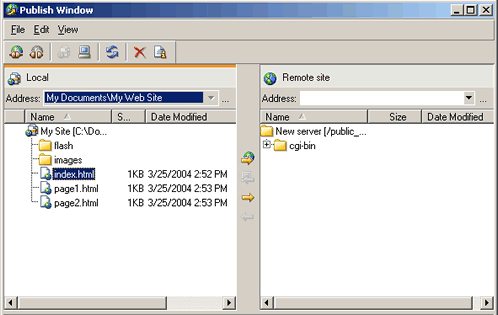
1. Once back inside the publish window select the files and folders you want to upload and click the Upload  icon .
2. This will upload the files to your web space exactly as they are on your local computer.
This concludes the tutorial on publishing with SJ Namo's WebEditor 6 ™. If this tutorial did not answer your questions, or if new ones have surfaced please check out Namo's website where you will find a wealth of help on this product.
If you still need help publishing to an InMotion server, feel free to contact support.